 GameKeepr
Installing game servers
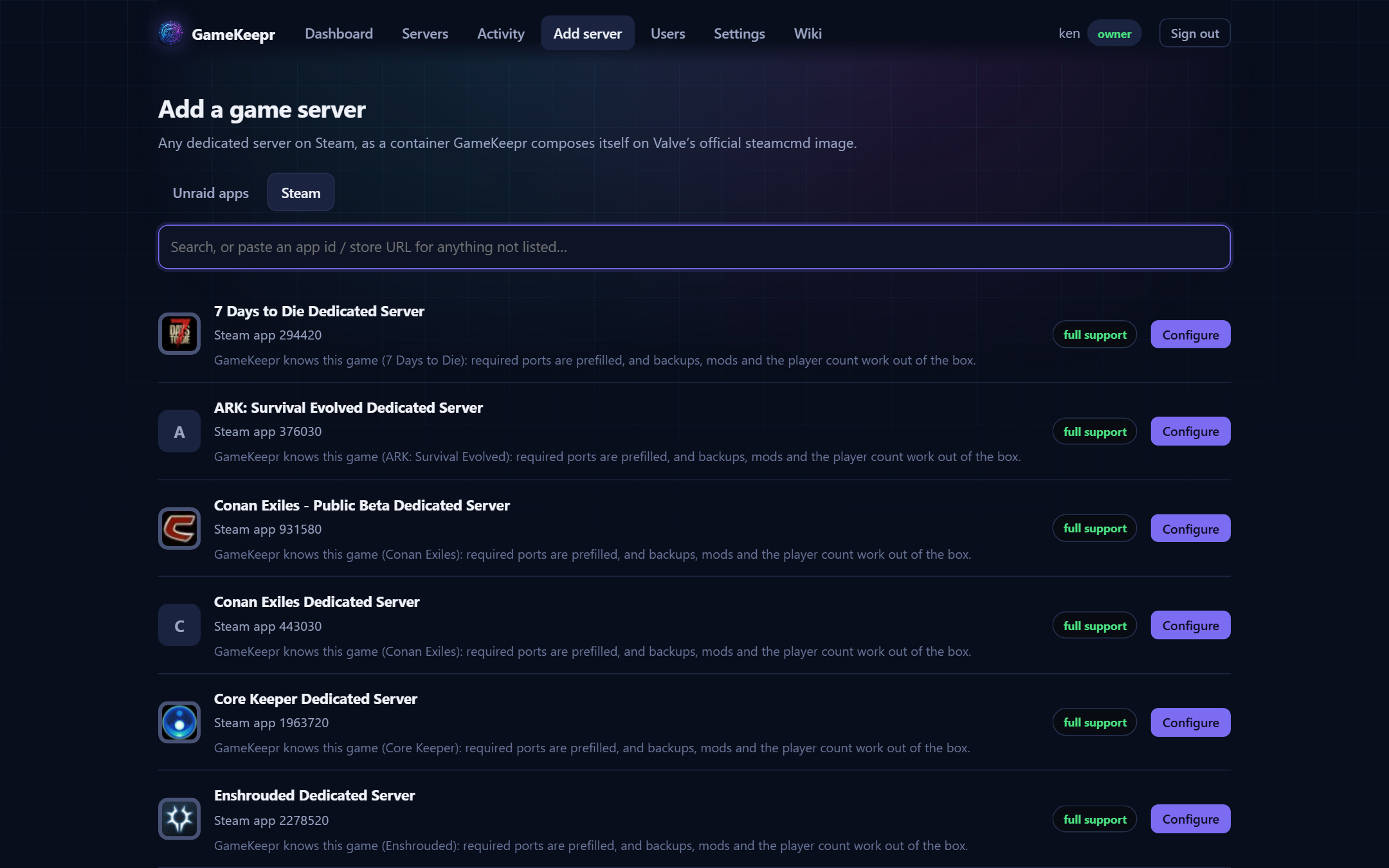
Add server offers two routes. They differ in who you are trusting.
Unraid apps
Templates from Community Applications, limited to trusted publishers. Before anything is created, GameKeepr reviews the template and shows its findings: who published it, whether the image is what it claims, which paths it mounts. Templates that ask for privileged mode are refused outright — no game server needs root on the host.
Steam
Any dedicated server Steam carries (~580 at the last count, recognised games sorted first), as a container GameKeepr composes itself on Valve's official steamcmd image. Here you trust exactly two parties — Valve's image and Steam's own depots — and the one thing in between is a start script GameKeepr writes, which lands in the server's own files where you can read it.
- The start command comes from Steam's own app info and is shown for you to confirm. When Steam lists no Linux command, GameKeepr's registry fills in the known start script for games it recognises (7 Days to Die, Project Zomboid) — and for everything else the field may simply stay empty: the server then finds its own conventional start script (
startserver.shand friends) on first boot, refusing loudly instead of guessing when none exists. When a server misbehaves, the game's wiki usually documents the right headless command — edit it in the form or later in the Files tab. - SteamCMD downloads the server on first start and re-checks on every start, which is also how it updates.
- Windows-only servers are refused with the reason. The rare app that refuses anonymous downloads says so in its first log lines; give the container a Steam account in the deploy form's login section.
- Anything not in the list: paste its app id or store/SteamDB URL in the search box.
What both routes share
- Joining, asked up front: for recognised games the form opens with the join settings — password, world, server name — so the server is ready for friends the moment it is up. Everything can still be changed later on the Settings tab, and the server's overview shows a Joining card with the address, port and password for everyone who may see it.
- Ports: GameKeepr's game registry knows what each recognised game needs and fills in anything the template or your list forgot — a Project Zomboid with only one of its two UDP ports looks healthy and is unjoinable, which is exactly the failure this prevents. The deploy log says what was added.
- Network: every deployed server joins GameKeepr's own Docker network, so the portal can reach it by name for player counts.
- Forwards: with a router connected (see Networking and ports), the deploy opens the game's ports on it automatically and says so in the deploy log. Administrative ports (RCON, web consoles) are never opened automatically.
- Registration: the new server appears in the portal immediately, with player queries, mods, backups and typed settings wherever the registry recognises the game.
Renaming and removing
Operators can rename a server from its card (the pencil on hover): only the display name changes — the container, the URLs and the artwork stay put. Servers listed by hand in config/servers.json are renamed in that file.
Two ways out, with very different weight:
- Remove from the portal (operators): takes the server off the list, with its schedules and access exceptions; the container itself is left running, so nothing is destroyed by an accidental click.
- Delete (the owner only, the bin on the card): stops and removes the container and forgets the server. The game's data directory and its backups deliberately stay on disk — worlds do not die by button. Clean the disk by hand when you are sure.